

User Interface
This page provides a detailed introduction to the NoBase user interface features.
Dashboard
The homepage allows you to view operational status in real-time, displaying key metrics such as total users and total launches, providing API call records and recent registration trend charts.
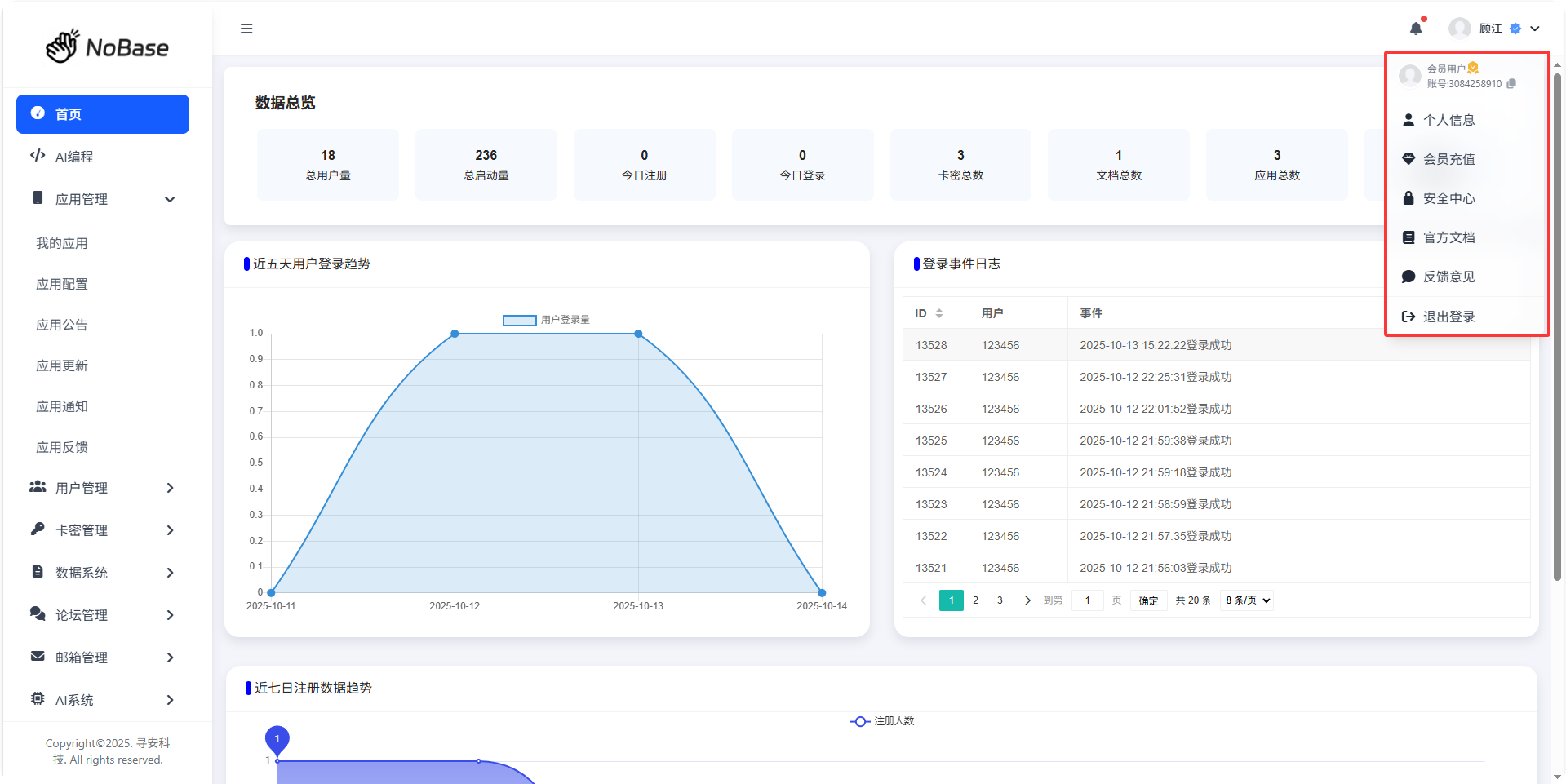
The upper right corner displays your account information and status, supporting one-click account copying.
- Profile: View and modify personal information.
- Membership Center: Recharge and redeem membership, view account membership expiration time.
- Security Center: Change password and bind third-party platform accounts.
- Official Documentation: View NoBase official documentation.
- Feedback: Submit feedback and suggestions.
- Logout: Log out of the current account.
App Management
Manage applications, including app list, app configuration, announcements, notifications, feedback, etc.
My Apps
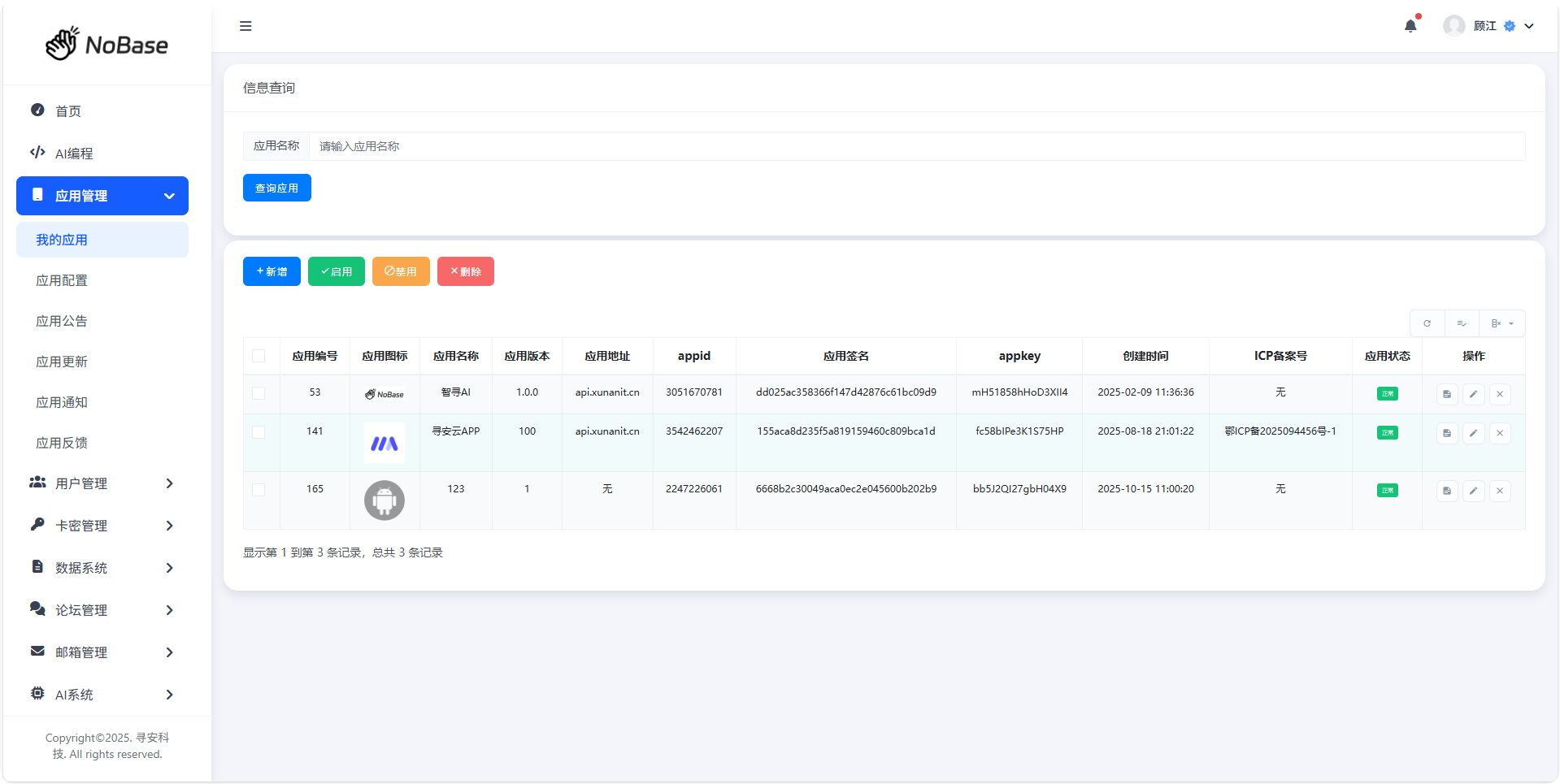
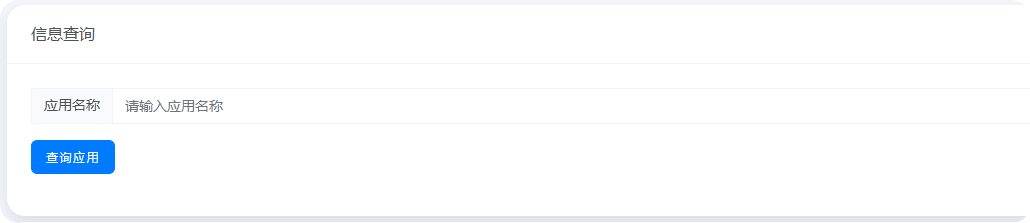
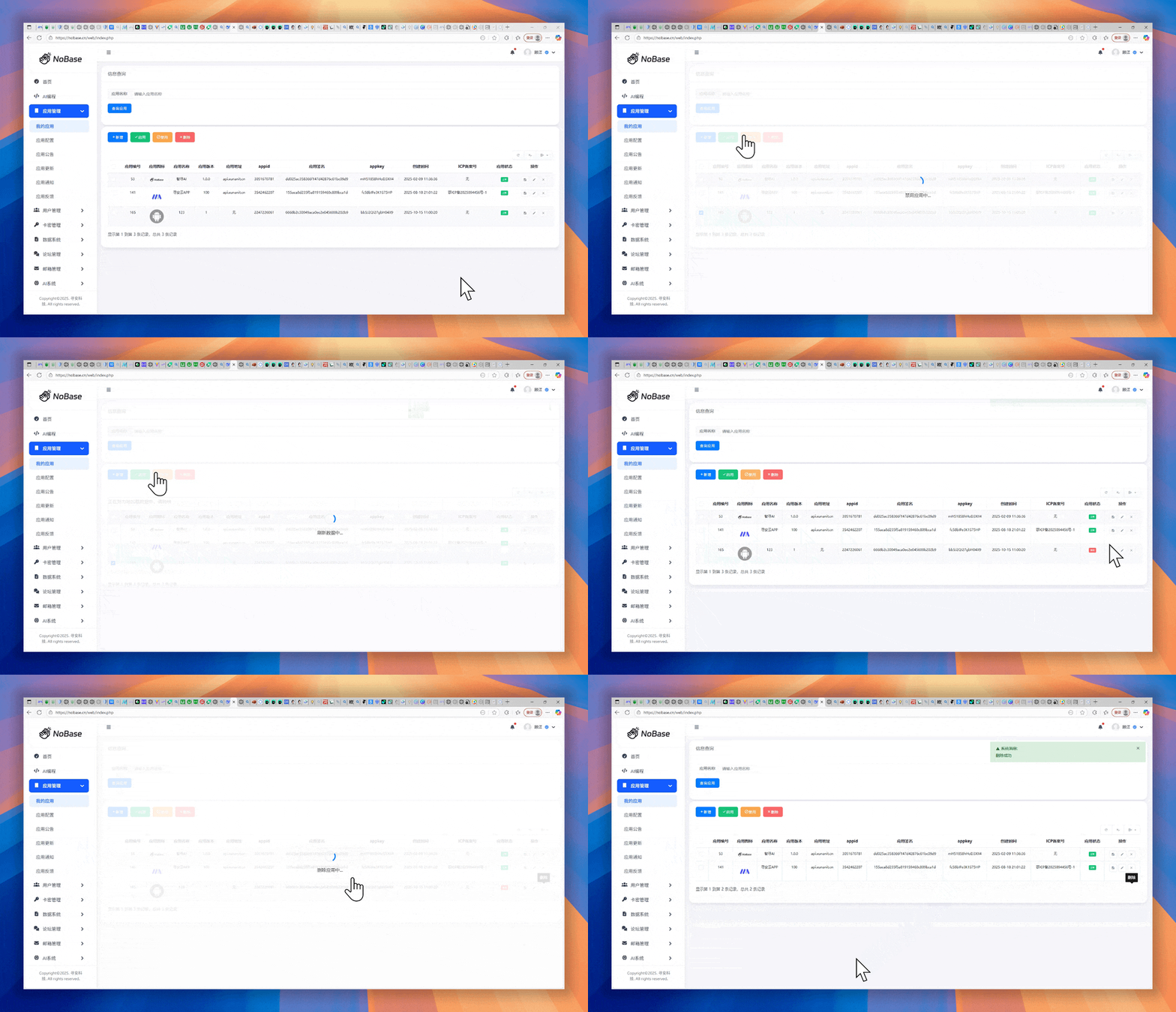
Fuzzy search app names to find specific applications.
You can delete, modify, rename, and refresh applications.
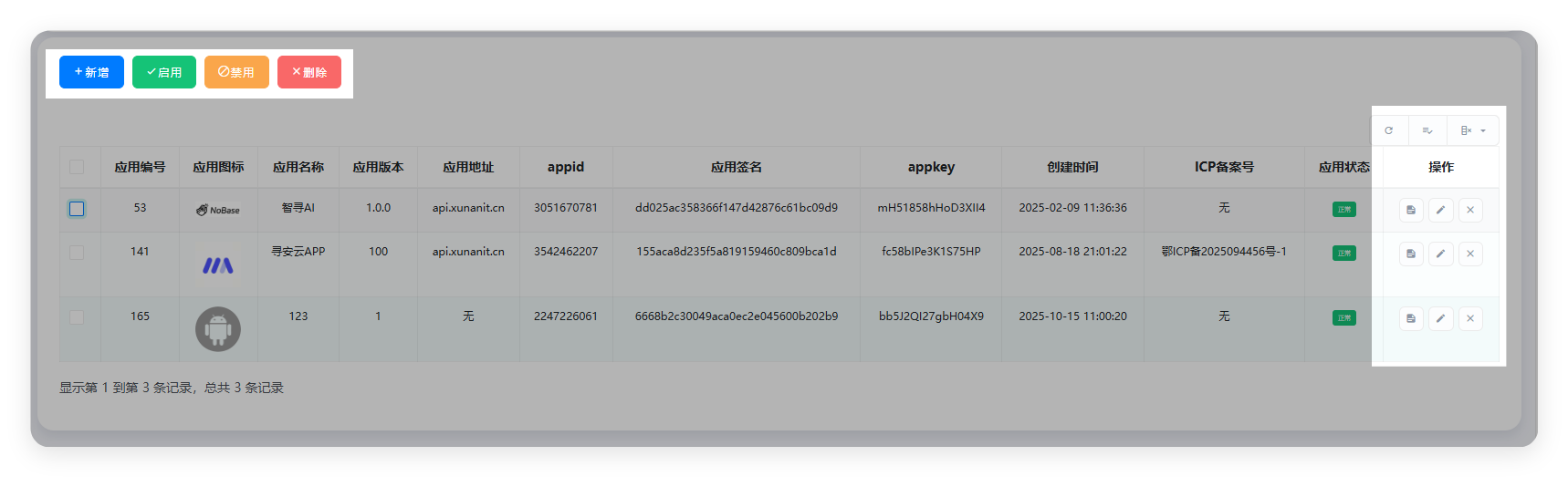
If you need to delete an application, you must first disable it before deletion.
FAQ:
Why do I get an error when creating an application?
It may be because the uploaded image is too large. Please use a smaller image or don't upload an image. Or please check, currently only supports creating up to three applications, additional charges apply beyond that, please contact customer service.
Why don't my apps show up when selecting apps on other pages?
Please check if your membership has expired. If it has, please renew first or contact customer service.
Why can't I enable the app?
Please check if the app is already enabled. You cannot click enable again when the app is already enabled.
What is appkey?
Appkey is the key used to encrypt data, used for data encryption during API calls. Please do not confuse it with the app signature.
App Configuration
Terminology
- App Stop Prompt: After disabling the app, the service will be stopped. When users use the app, they will receive this prompt, and the prompt content can be customized.
- App Data Return Format: You can choose to return data in plain text or JSON format.
- App Encryption Switch: After enabling encryption, the returned data will be encrypted. If using AES encryption, you need to use appkey to decrypt. Base64 doesn't need appkey. You can also choose not to encrypt, which is the default.
- Global Token Access: When users access APIs, they need to provide a Token (user token). If global token access is enabled, users don't need to provide a Token when accessing APIs. The Token will be returned by the login API. It is recommended to cache the Token locally.
- App Key Reset: After resetting the app key, the app's appkey (AES encryption key) will be reset. Please save it in time.
- Token Validity Period (hours): The validity period of the Token returned by the user login API, default is 1 hour.
If you still have questions, please contact customer service. 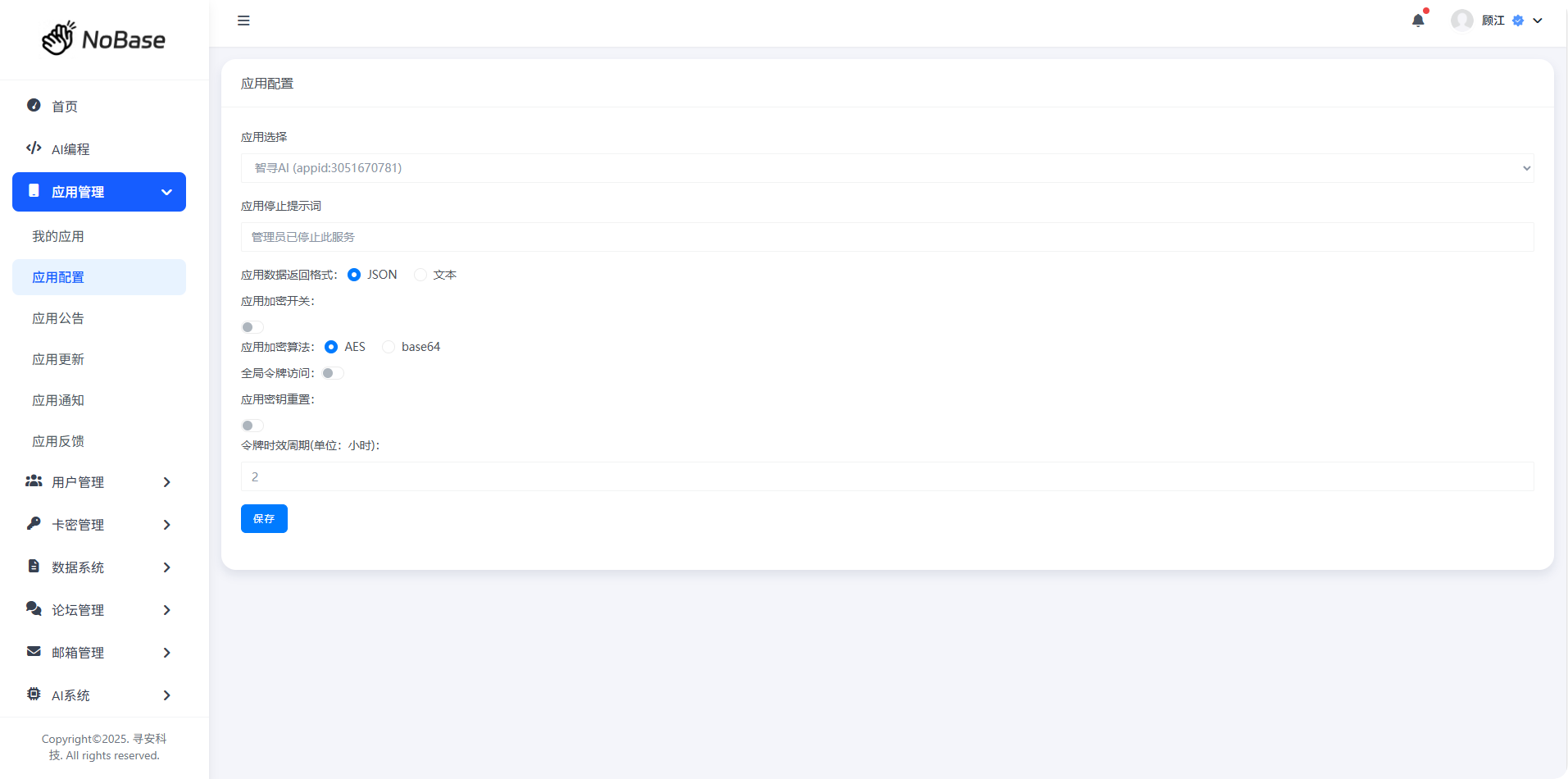
FAQ:
Why does it prompt that a user token is required when requesting an API?
If global token access is enabled, users need to provide a Token when accessing APIs. The Token will be returned by the login API. It is recommended to cache the Token locally.
App Announcement
App announcement is the announcement information of the application. You can make announcements for the app and choose to enable or disable them. When disabled, the announcement content will not be displayed.
App Update
App update is the update information of the application. You can update the app. Forced updates will return 0 or 1, and you can judge whether it is 0 or 1 to perform forced updates. The logic is handled on the frontend.
App Notification
App notification is the notification information of the application. You can send notifications to each user, such as new activities, etc.
App Feedback
You can view user feedback information and contact users through the contact information they provide.
User Management
User system, you can manage users, including user list and user configuration.
My Users
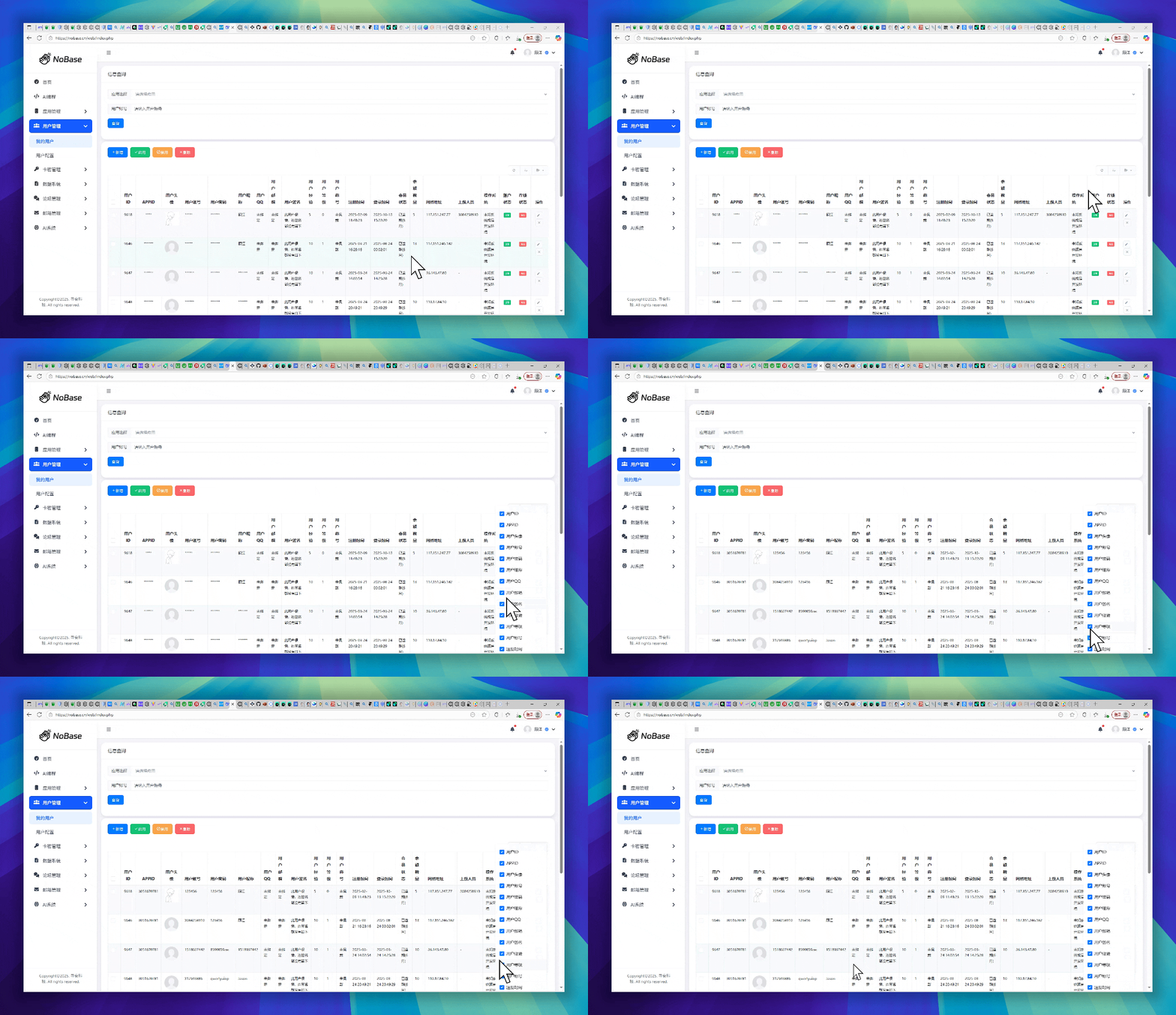
You can delete, disable, enable, and modify user information.
The operation bar can display more fields, click to hide and show.
User Configuration
Terminology
1. Registration Configuration
Registration Disabled Prompt: When the app registration entry is closed, users will receive this prompt when registering.
Account Minimum Length: The minimum length limit for account registration.
Account Maximum Length: The maximum length limit for account registration.
Registration Membership Gift: How long membership is given to users upon registration, in minutes.
Registration Points Gift: How many points are given to users upon registration.
Registration Experience Gift: How much experience is given to users upon registration. Experience can be used to level up.
Daily Registration Limit: The maximum number of daily registrations.
User Registration: Can be enabled or disabled. When disabled, users cannot register.
Email Verification: Can be enabled or disabled. When disabled, users cannot register via email.
Registration Membership Gift: Can be enabled or disabled. When disabled, users will not receive gifted membership upon registration.
Registration Points Gift: Can be enabled or disabled. When disabled, users will not receive gifted points upon registration.
Registration Experience Gift: Can be enabled or disabled. When disabled, users will not receive gifted experience upon registration.
Daily Registration Limit: Can be enabled or disabled. When disabled, there is no limit on the number of user registrations.
2. Login Configuration
Login Disabled Prompt: When the app login entry is closed, users will receive this prompt when logging in.
Login Points Gift: How many points are given to users upon login. Select whether to enable below. When enabled, users will receive gifted points upon login.
User Login: Can be enabled or disabled. When disabled, users cannot log in.
Members Only Login: Can be enabled or disabled. When disabled, non-member users cannot log in.
3. Check-in Configuration
Check-in Success Prompt: Users will receive this prompt when checking in successfully.
Already Checked In Today Prompt: Users will receive this prompt when checking in repeatedly.
Normal User Check-in Points: How many points are given to normal users upon check-in.
Member Check-in Points: How many points are given to member users upon check-in.
Normal User Check-in Experience: How much experience is given to normal users upon check-in.
Member Check-in Experience: How much experience is given to member users upon check-in.
Check-in Disabled Prompt: When the app check-in entry is closed, users will receive this prompt when checking in.
User Check-in: Can be enabled or disabled. When disabled, users cannot check in.
4. Points Configuration
Points Name: The name of points, default is Coins.
5. Invitation Configuration
Invitation Membership Gift: How long membership is given for invitations, in minutes.
Invitation Points Gift: How many points are given for invitations.
Invitation System: Can be enabled or disabled. When disabled, users cannot invite others.
6. Other Configurations
User Password Change: Can be enabled or disabled. When disabled, users cannot change their password.
User Private Chat: Can be enabled or disabled. When disabled, users cannot chat privately.
Card Management
Card System
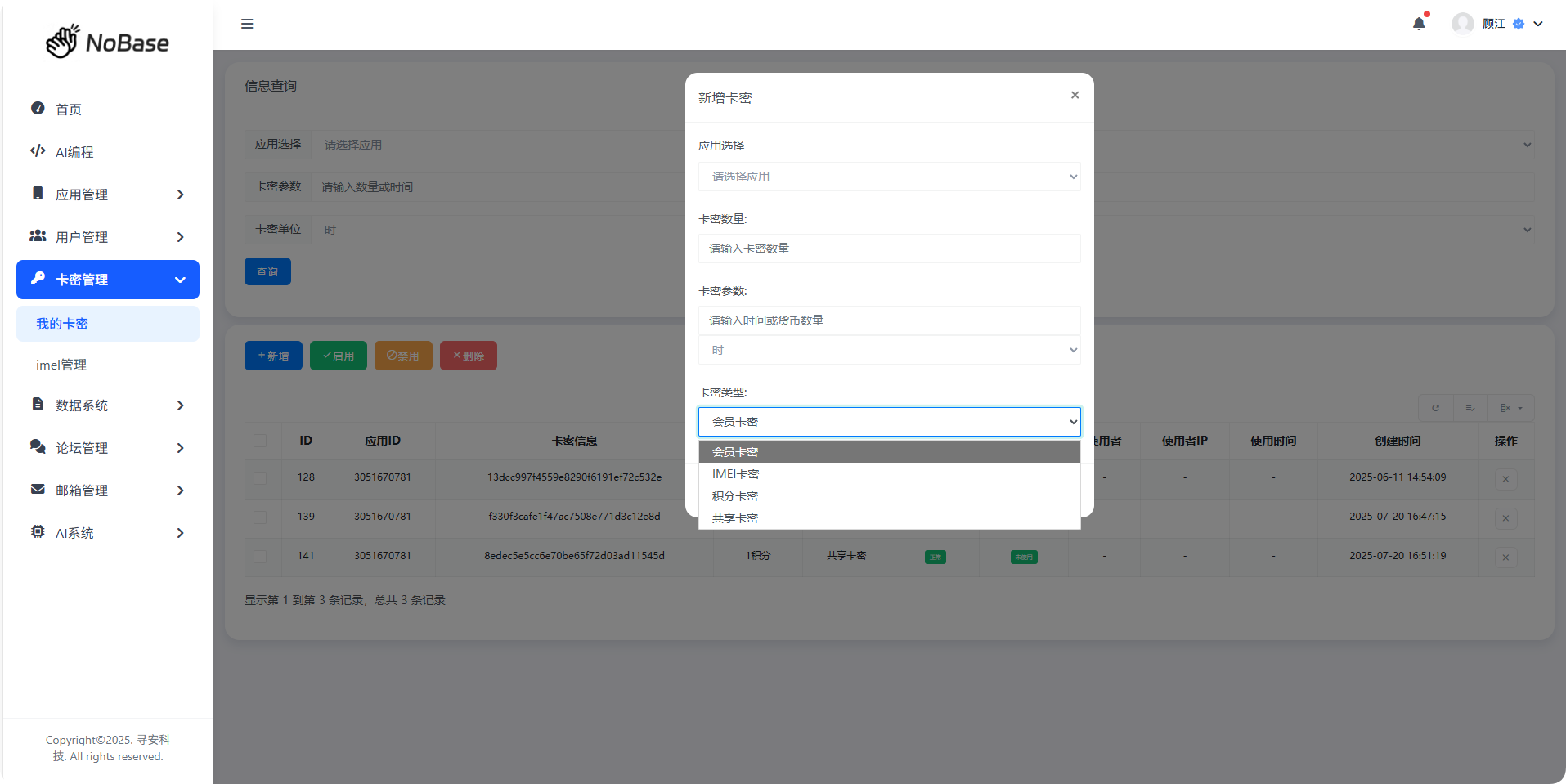
The card system is equivalent to redemption codes. You can manage cards.
Includes the following types of redemption codes:
- Membership Card: After users enter the card code, they can redeem membership. Each card code becomes invalid after being used by one user.
- IMEI Card: IMEI is the unique identifier of the phone. This type requires the IMEI card redemption API. After users enter the card code, they can redeem related membership or points. Each card code becomes invalid after being used by one user.
- Points Card: After users enter the card code, they can redeem points. Each card code becomes invalid after being used by one user.
- Shared Card: After all users enter the card code, they can redeem points or membership. Each user can only claim it once, and it will not become invalid. You can manually disable the card.
Data System
Super Document
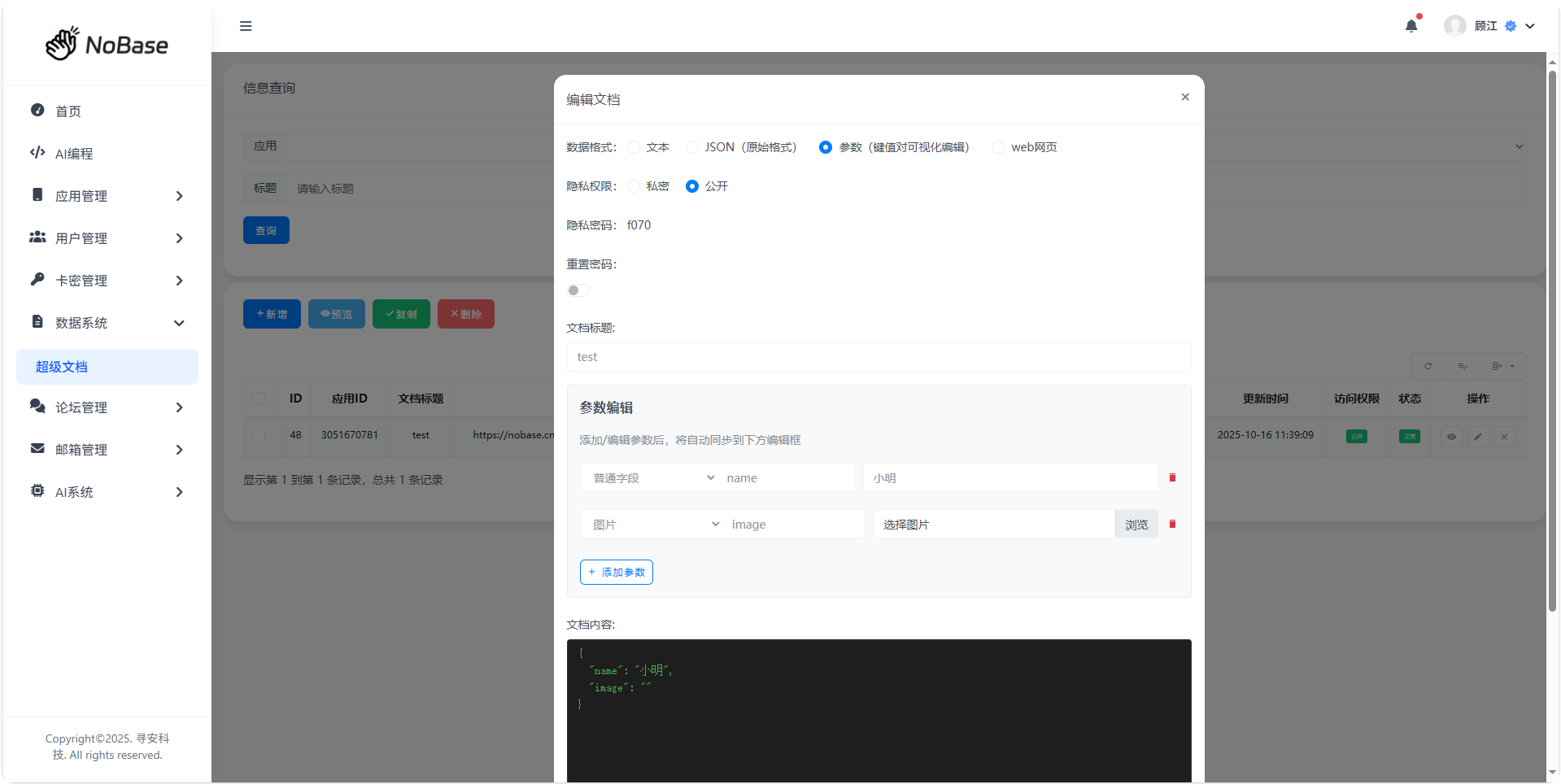
You can configure the data you want through the super document system. It can also be used as Mock data (simulating API response). You can preview the returned data through the button.
You can set it to private or public. When set to private, you need to enter a privacy password to access. When public, all users can see the document.
Forum Management
My Plates
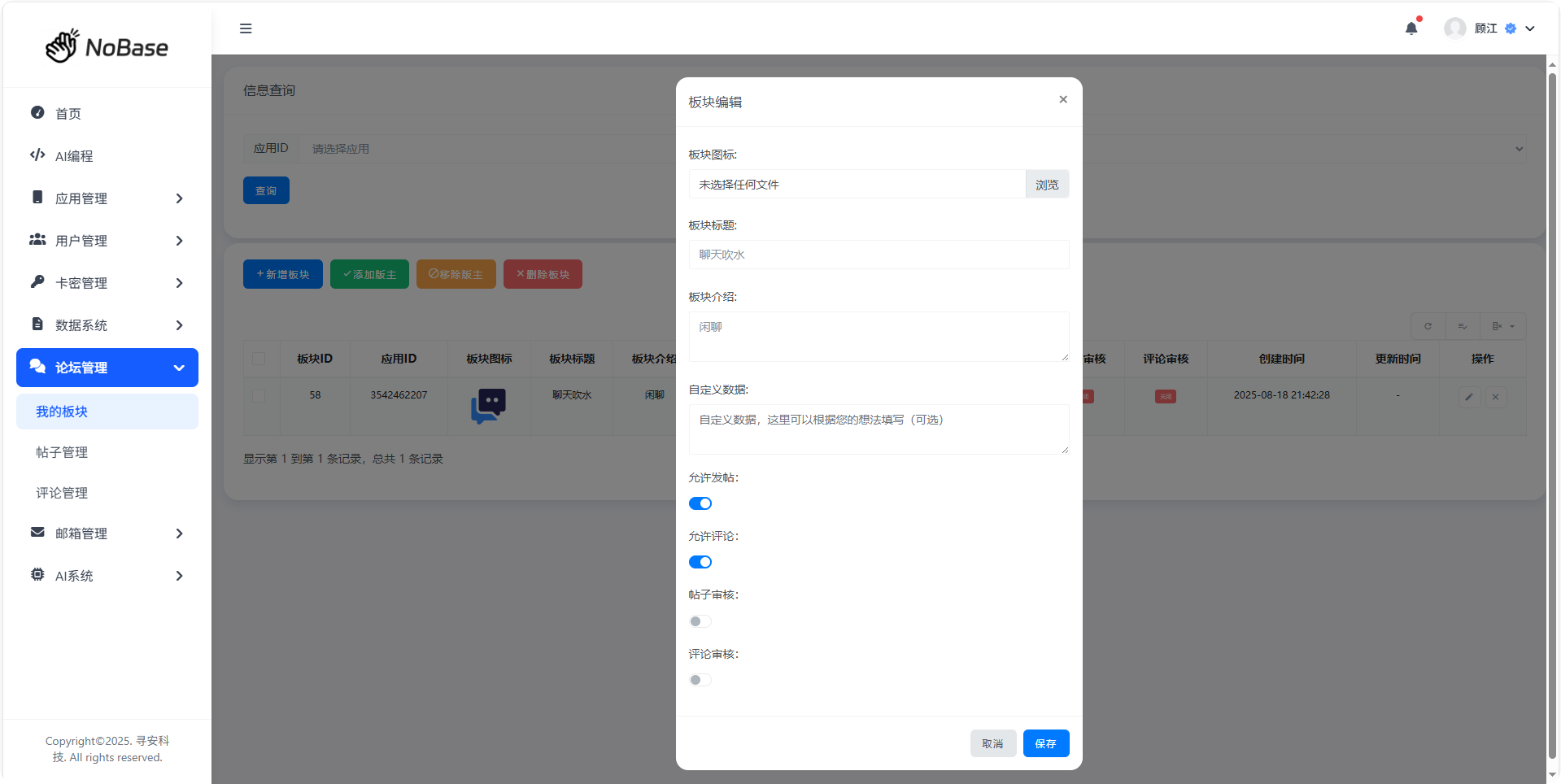
You can create, delete, modify, rename, and refresh plates.
You can choose whether to enable posting and commenting. When disabled, users cannot post or comment.
You can also enable review. After enabling, user posts or comments need to be reviewed before being displayed.
Post Management
You can delete and review posts. Like count, view count, etc. will be displayed here.
Users need to upload images through the image upload API to get the image link, and then use the image URL in posts.
Comment Management
You can delete and review comments.
Email Management
Email Configuration
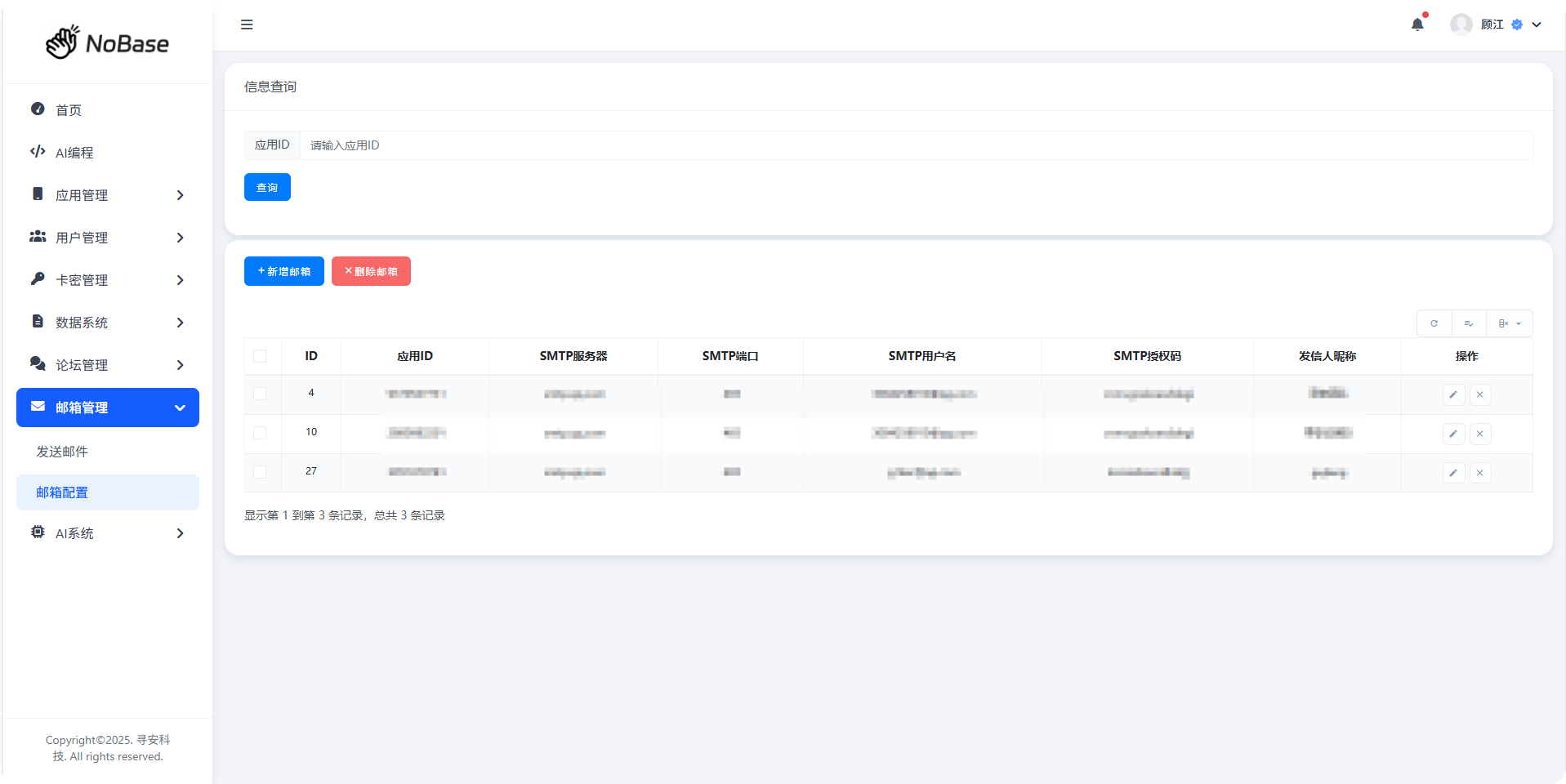
SMTP is the server for sending emails. You can send emails by configuring the SMTP server.
Here is an example using QQ Email: QQ Email Configuration Tutorial
Configure SMTP Server Information
Configure SMTP server information for sending emails.
SMTP Server: smtp.qq.com (QQ Email) or smtp.163.com (NetEase Email)
SMTP Port: Usually 465
SMTP Username: Email account (e.g., 10001@qq.com)
SMTP Authorization Code: Obtained from QQ/NetEase email backend.
Send Email
You can test if the email configuration is correct by sending an email. If there is an error, please check if the SMTP email configuration is correct and if the authorization code has expired.
Note
Sending emails requires enabling the SMTP server, otherwise it will report an error. You can also call the send email API to send emails. Abuse is prohibited. Using it for marketing or advertising is risky. Violations will result in account suspension.
AI System
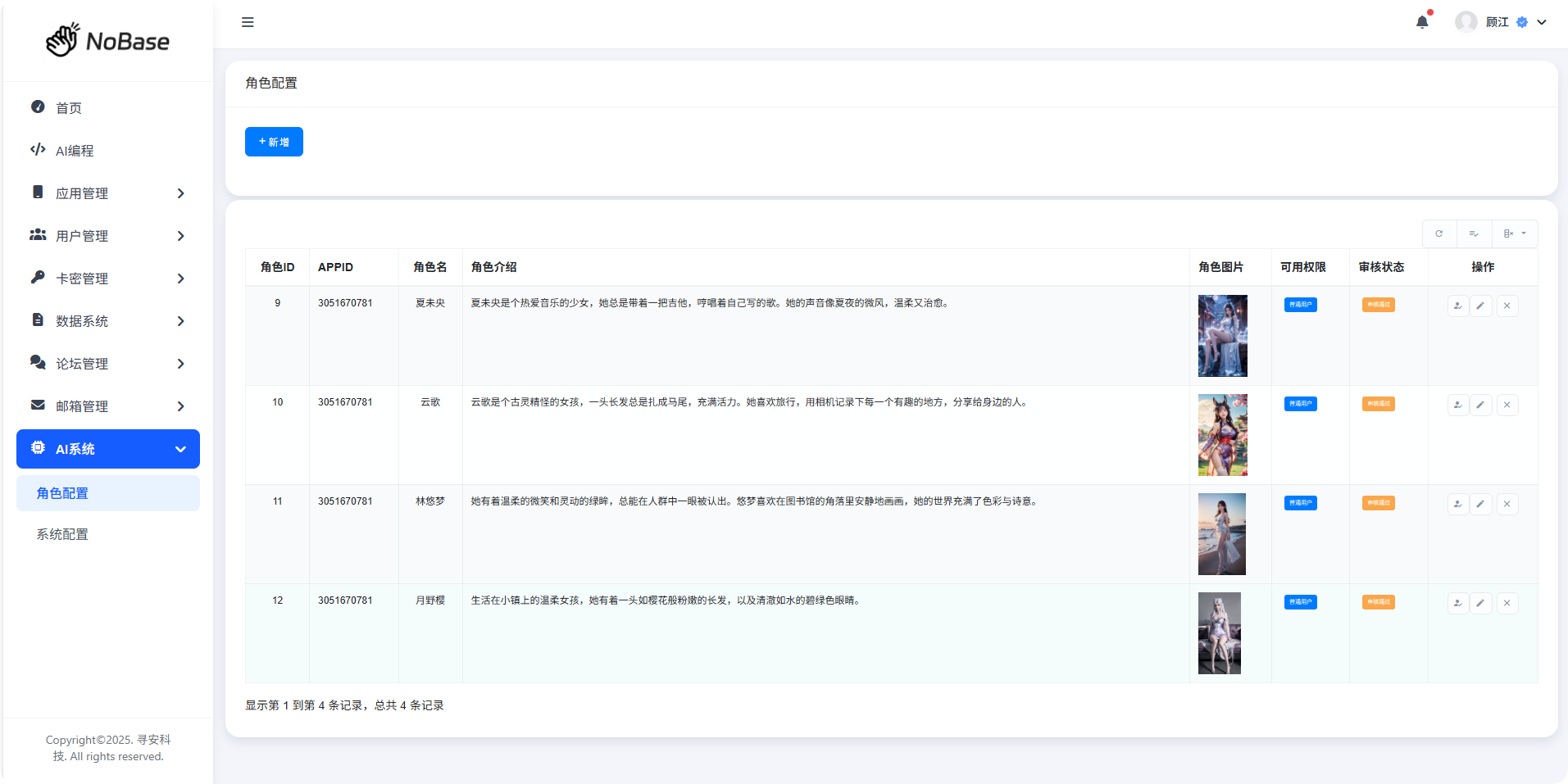
Role Configuration
This is equivalent to a system for presetting prompts for AI models. You can write prompts in advance to let the AI model answer user questions based on the prompts.
System Configuration
You can configure AI models, parameters, and system prompts.
The official shared API is free to use but has a certain quota. After the quota is used up, it will be unavailable. It is recommended to connect to third-party vendor model APIs.
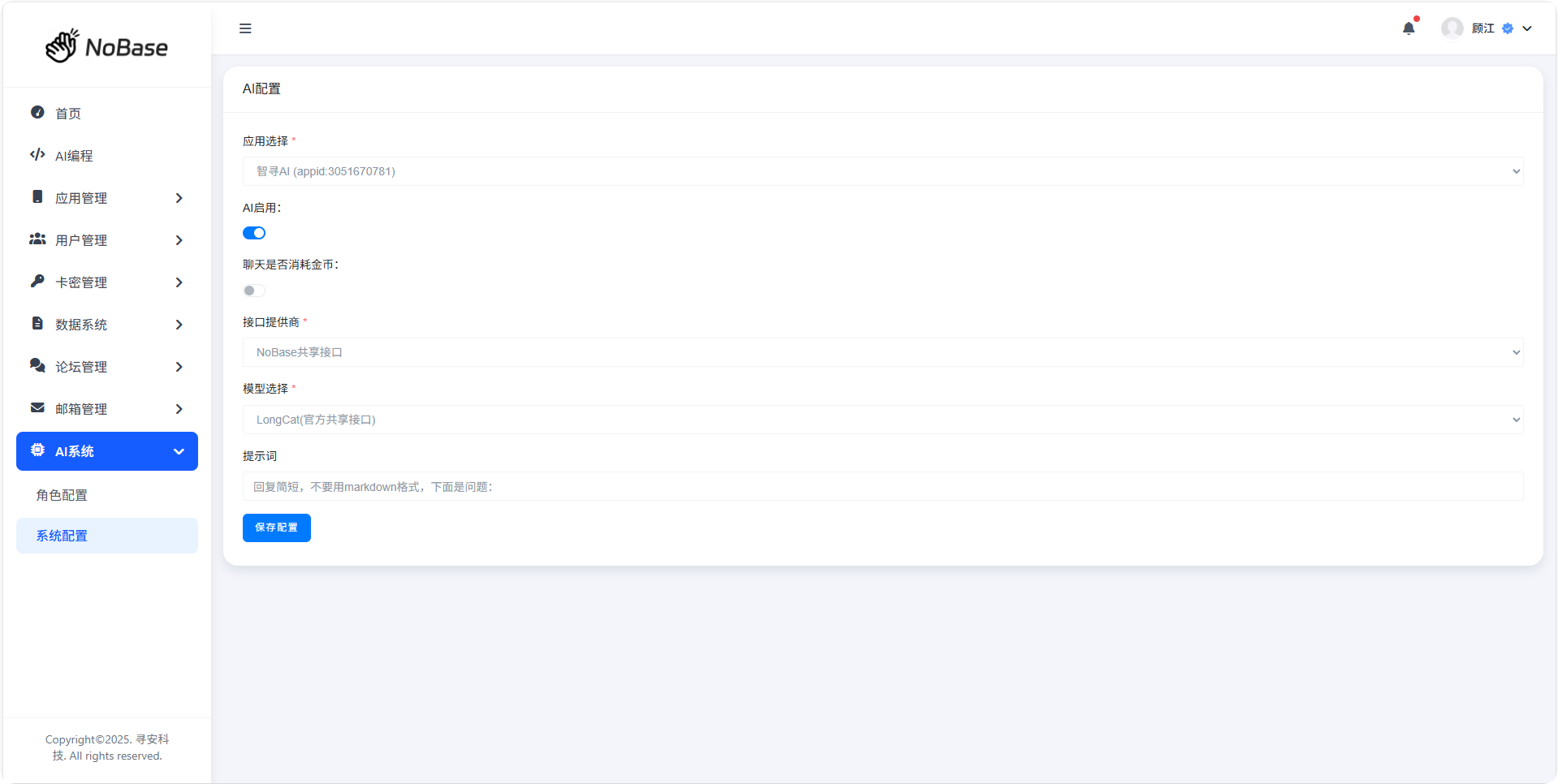
It is recommended to connect to Siliconflow's AI model API. NoBase Integration with Siliconflow Documentation.